Setting up your company
Three things before the first invoice — company details, service type, sender address; the last two are already filled in — and two you can adjust later: template and number range.
Last checked against the program: 09/10/2026
1. Check your company details
Open Settings → Business → Company. Name and address come from your registration.
- Required: name, street, house number, post code, town, country.
- VAT number and Registered for VIES, if you have one. Check own number queries the EU database VIES — only then does every check of your customers come with a consultation number as evidence.
- Tax number and VAT quarter cycle — as stated in your VAT registration notice.
- Bank details for the invoice: bank, IBAN, BIC. They appear on invoices with payment method bank transfer.
- Currency, invoice language, payment method, payment terms in days — the defaults for new invoices.
Click Save.
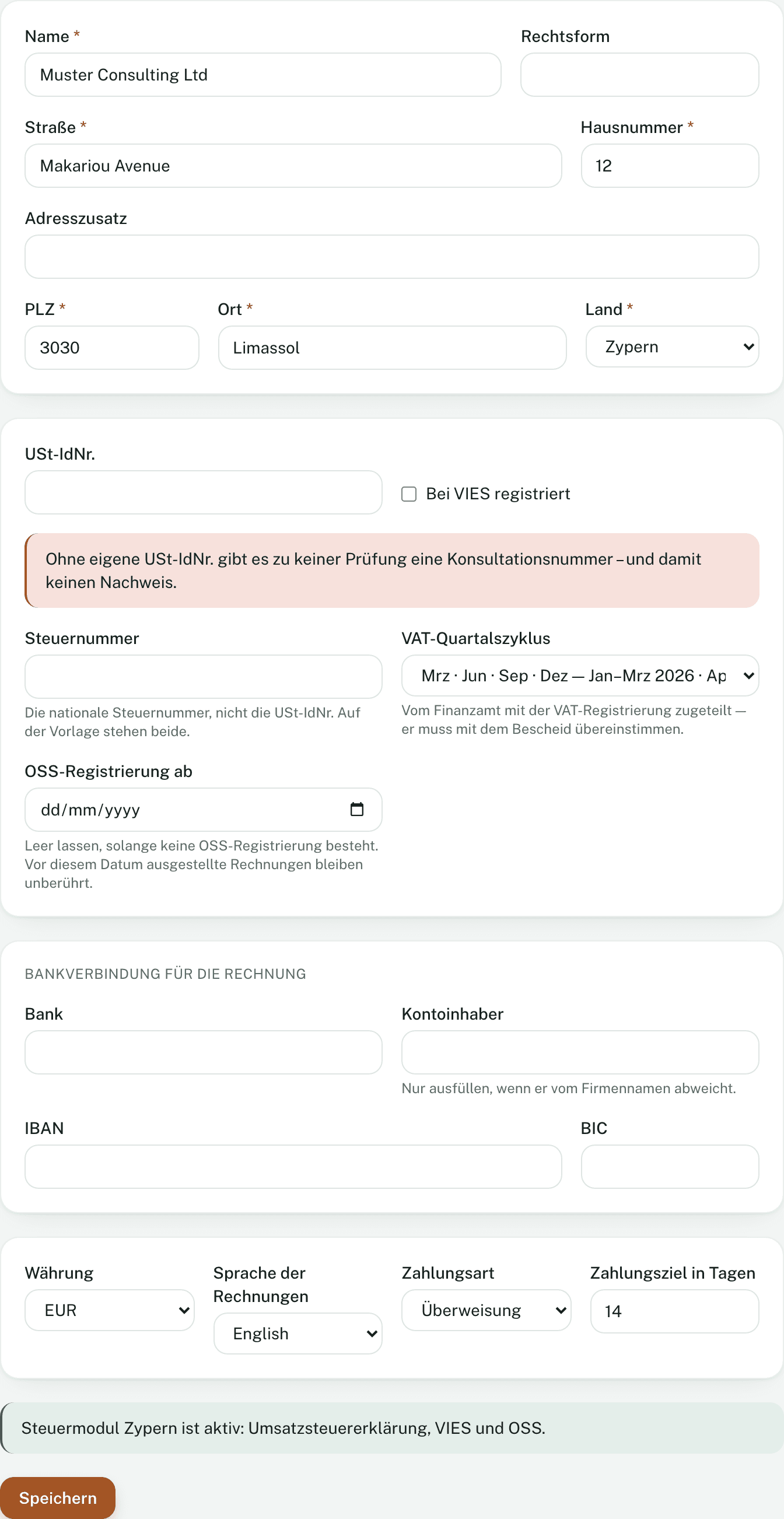
If a notice at the top asks you to check and confirm your company details, the button reads These details are correct. Without confirmed company details no invoice can be written.
2. Check the service type
Every invoice line belongs to a service type — it carries the VAT: which rate applies and where the service counts as supplied. At registration Invobookz creates a first one: “Services” with the general rule and the standard rate. If that fits what you sell, there is nothing to do. For further types:
- Open Settings → Documents → Services and click Add service.
- Enter a name, for example “Consulting” or “Software development”.
- Place-of-supply rule: for most services General rule — the place follows the customer.
- VAT rate: usually Standard rate. The figure behind it comes from the rate table and depends on the supply date.
- Click Save.
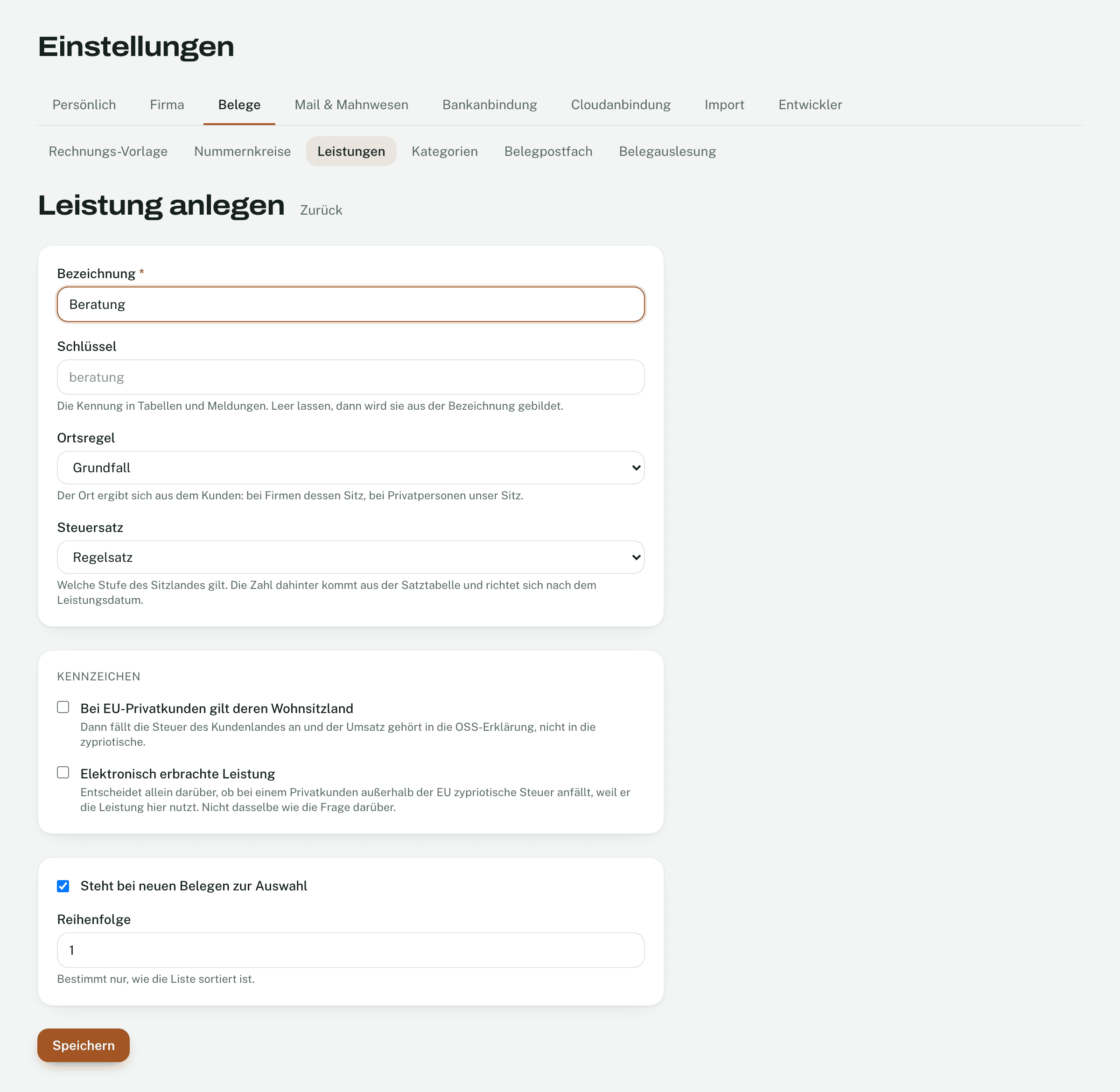
- Where the event takes place and Where the property is located are for services whose place does not depend on the customer — a trade fair, a house.
- Follows the main supply is for ancillary items such as recharged travel costs.
- For EU private customers the place is their country of residence and Electronically supplied service are flags for special cases. If in doubt, ask your tax adviser before setting them.
Finalised invoices keep their VAT even if you change a service type later — it was frozen when they were finalised.
3. Check your sender address
Without a sender address no invoice goes out by email. At registration Invobookz enters your email address. If your customers’ replies should arrive elsewhere, change it under Settings → Email & dunning → Sender.
- Display name: what your customer sees in their inbox. Empty means: your company name.
- Sender address: your address. Your customers’ replies arrive here.
- Click Save.
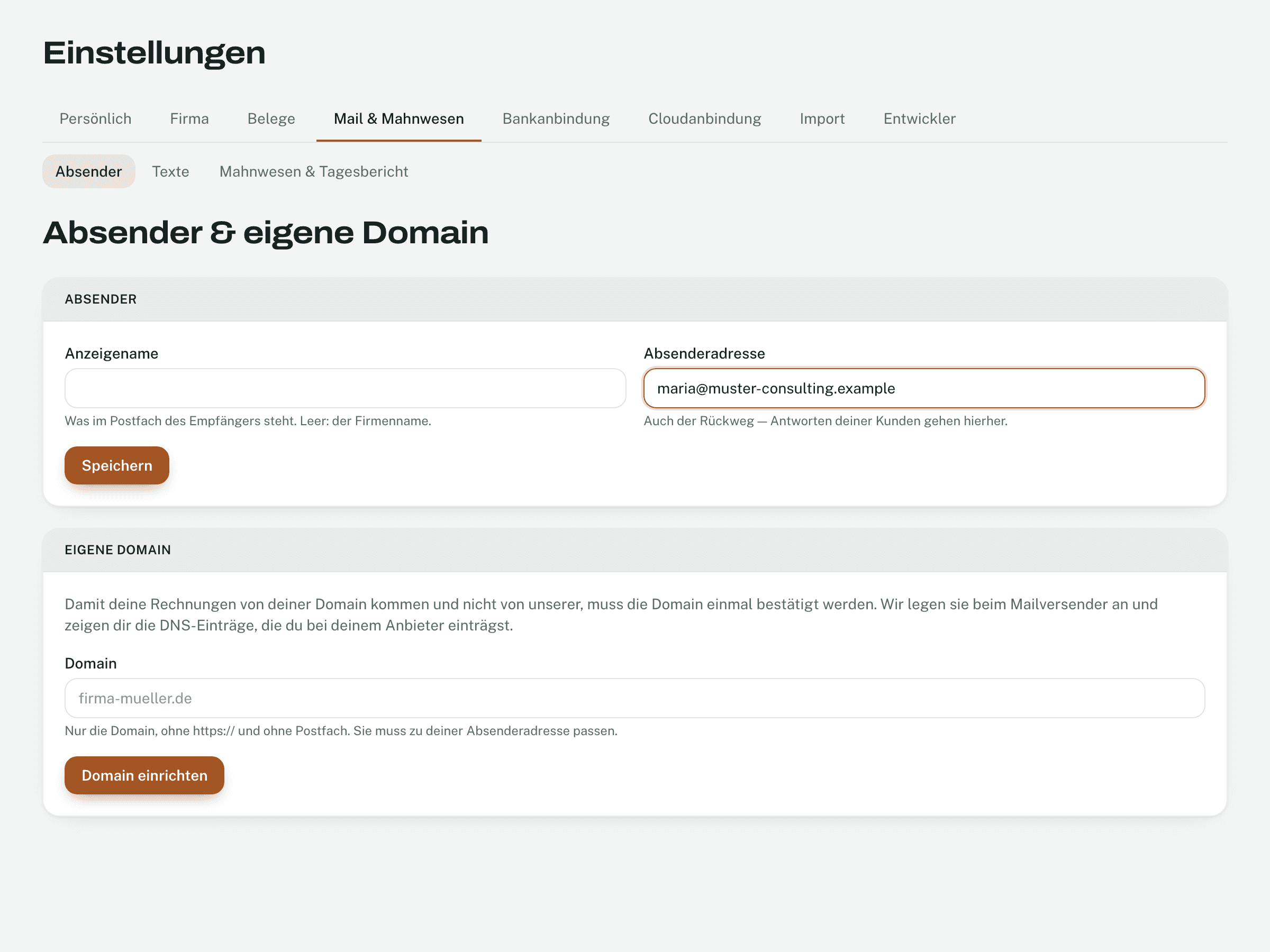
Emails go out via invobookz.com with your name as sender. With the Premium plan you can set up your own domain below — then they come from your address.
Later: template and number range
- Settings → Documents → Invoice template: logo (PNG, JPEG or SVG up to 400 kB), colours, default notes and the three footer columns.
- Settings → Documents → Number ranges: the number range is created with the first finalised invoice (for example INVOICE0001). After that you can change prefix, pattern and digits here and raise the next number — for instance to continue the numbering from your old program. Going back is not possible: a number is never issued twice.
Done. Continue with “Your first invoice”.
Not found what you are looking for? In Invobookz, click Support at the bottom left — we answer in the app.